Beadful Studio guide
How to use a Perler bead pattern maker (step by step)
Eight illustrated steps that take a photo to a printable bead chart and a shopping list — with a screenshot of every control. Runs in your browser, on your device.
Beadful Studio is a Perler bead pattern maker that runs entirely in your browser. Give it a picture and it returns a bead grid matched to real Perler, Hama, Artkal or MARD colors, a printable chart, and a per-color bead count — the photo is processed on your device and never uploaded.
This page walks through every control in order, so you can follow along with your own picture open. If you only need the short version, read how to make a Perler bead pattern from a picture instead.
Before you start
- A picture — JPG or PNG. Pixel art, logos, pets and portraits all work.
- A pegboard — the common square board is 29×29 beads. Know its size before you set grid width.
- Beads — decide which brand you will buy, because the chart prints that brand's codes.
- Ironing paper and an iron — for fusing when the beads are placed.
1Open the pattern maker
Open Beadful Studio. There is nothing to install and no sign-up. The workspace is three zones: Source on the left (your picture and settings), the bead canvas in the middle, and Results on the right (colors, export, tips).
2Add your picture and crop it
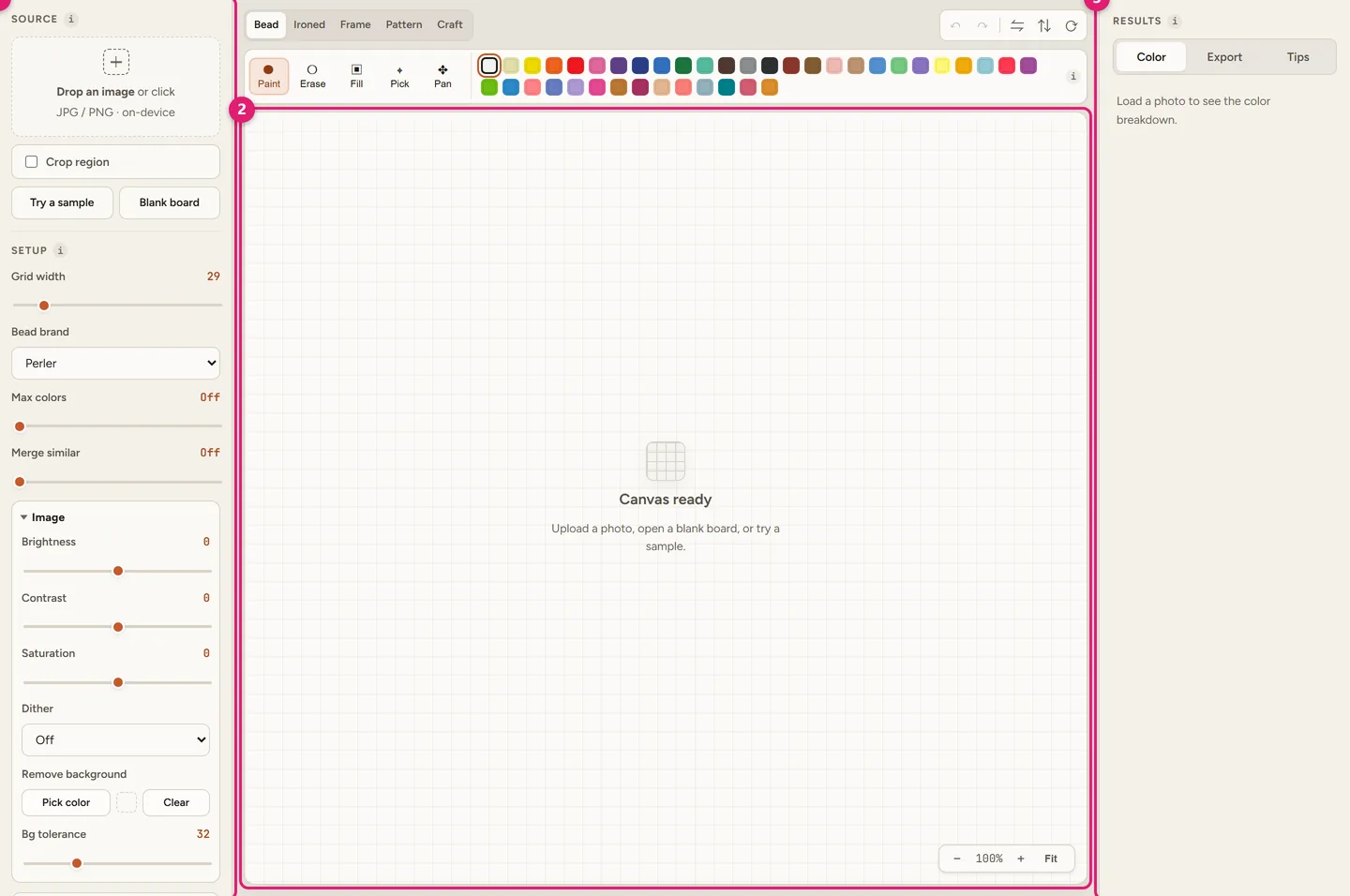
Drop a JPG or PNG onto the dropzone, or click it to browse. No picture handy? Use Try a sample, or Blank board to draw on an empty grid. Tick Crop region and drag on the preview to keep only the subject — cropping is the single biggest improvement you can make to a photo pattern.
3Set grid width and bead brand
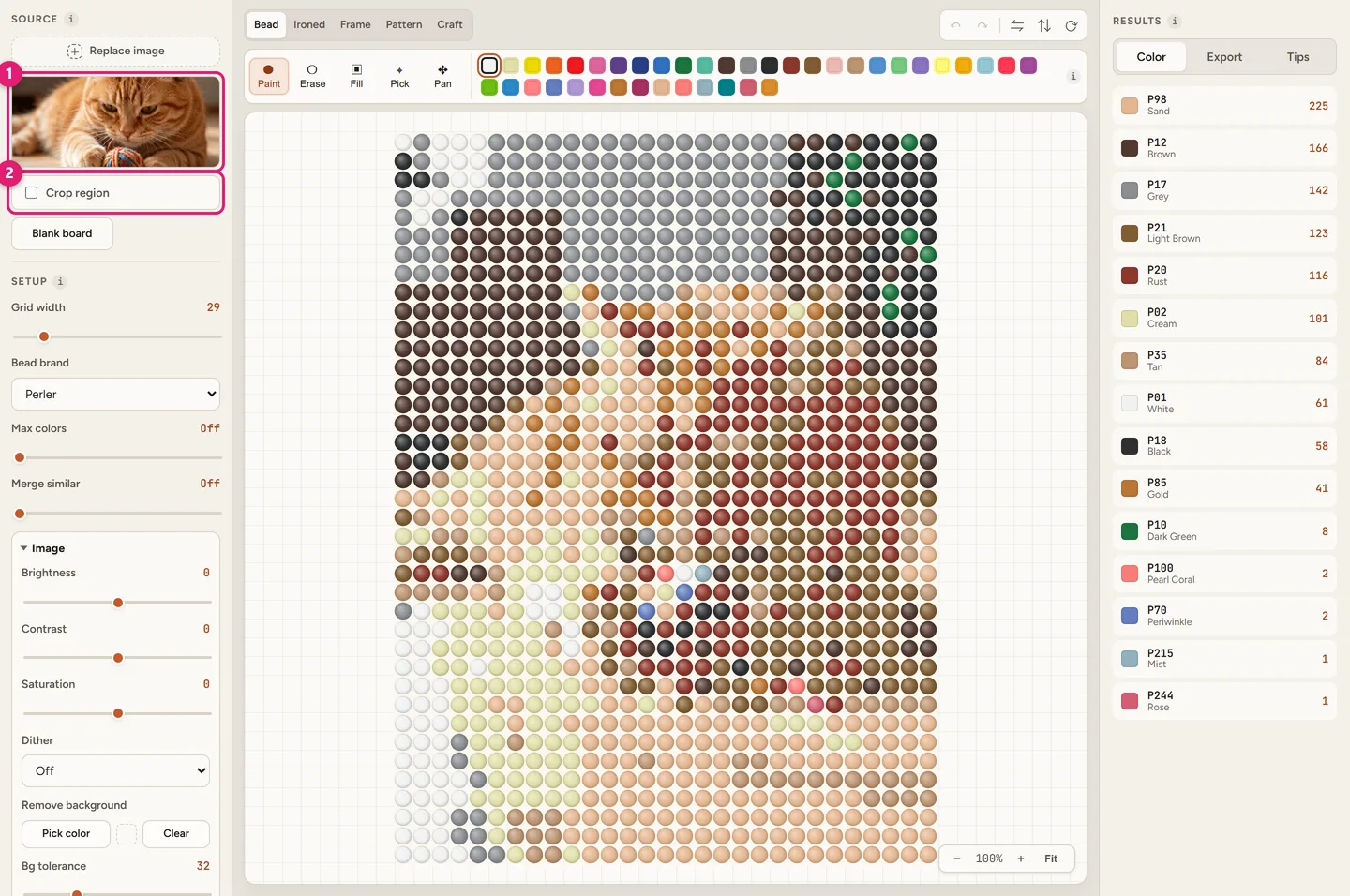
Grid width is how many beads wide the pattern is — this is what decides whether your finished piece fits the board. Bead brand swaps the whole color catalog, so the codes on your chart match the bags you actually buy.
4Cap the number of colors
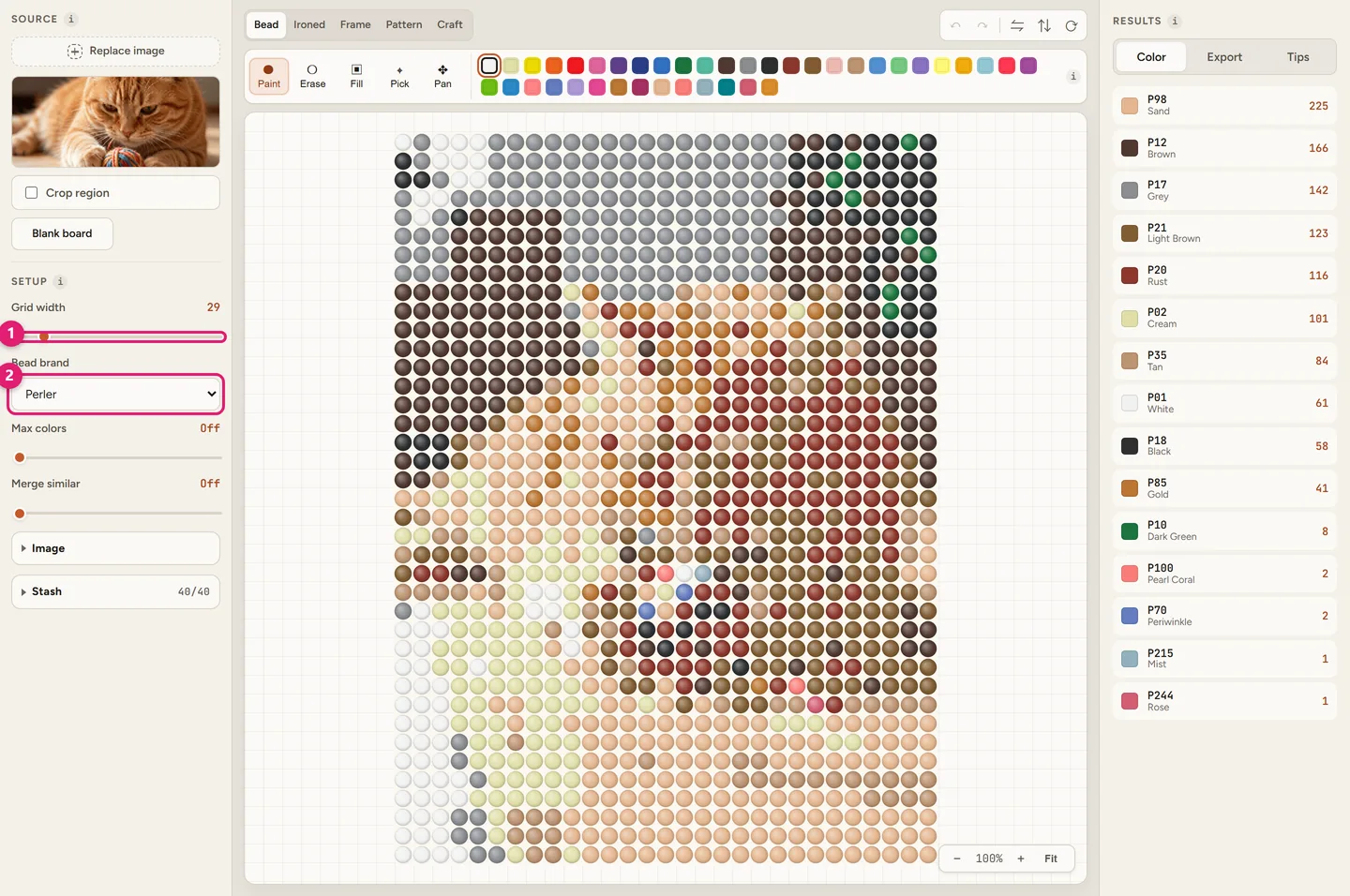
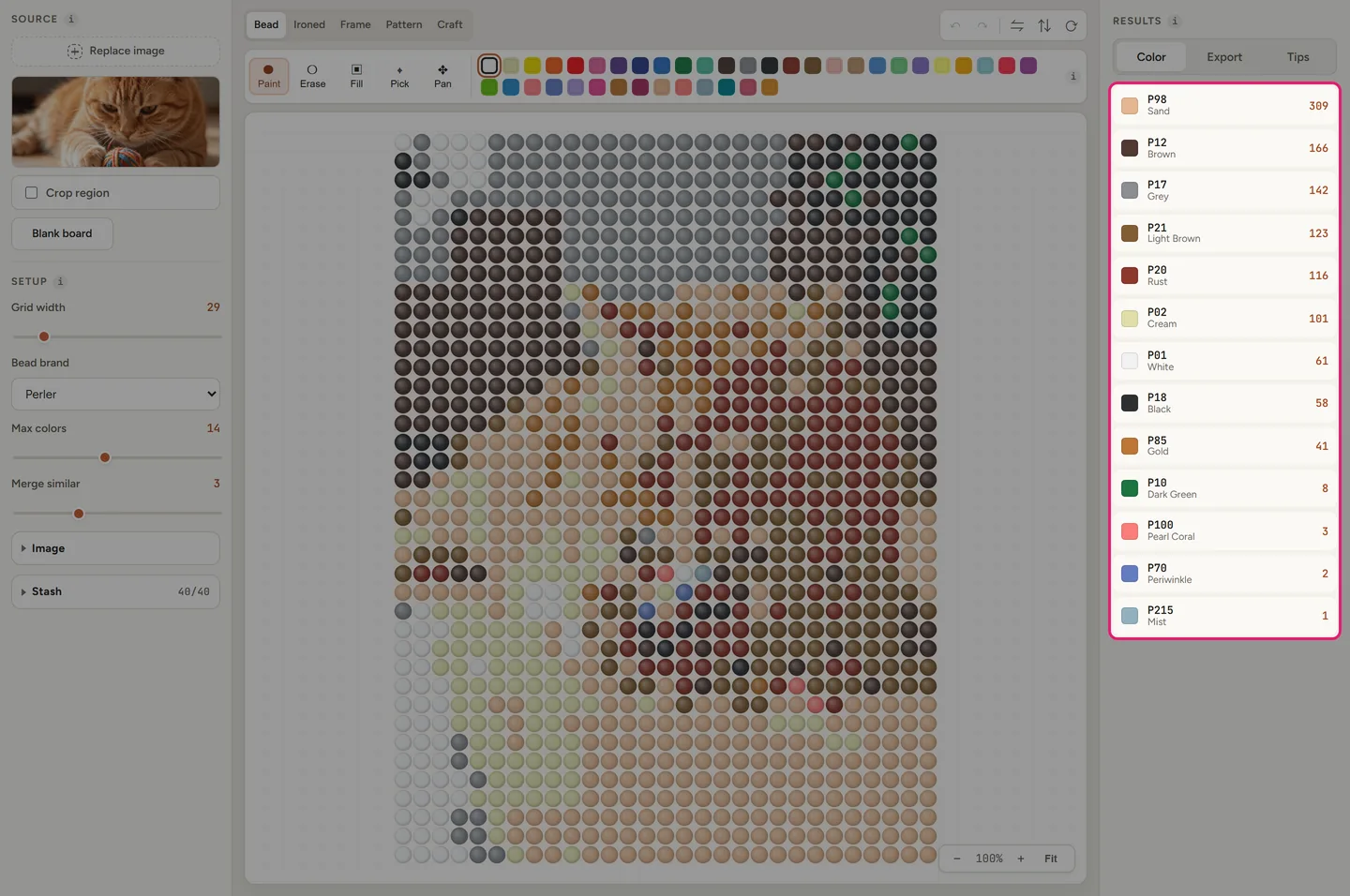
More colors means more bags to buy and a muddier result. Max colors hard-caps how many distinct bead colors the pattern may use, Merge similar folds near-identical shades into one, and Stash limits matching to colors you already own — tick only the bags in your drawer and the pattern is rebuilt from those.
5Clean up the photo
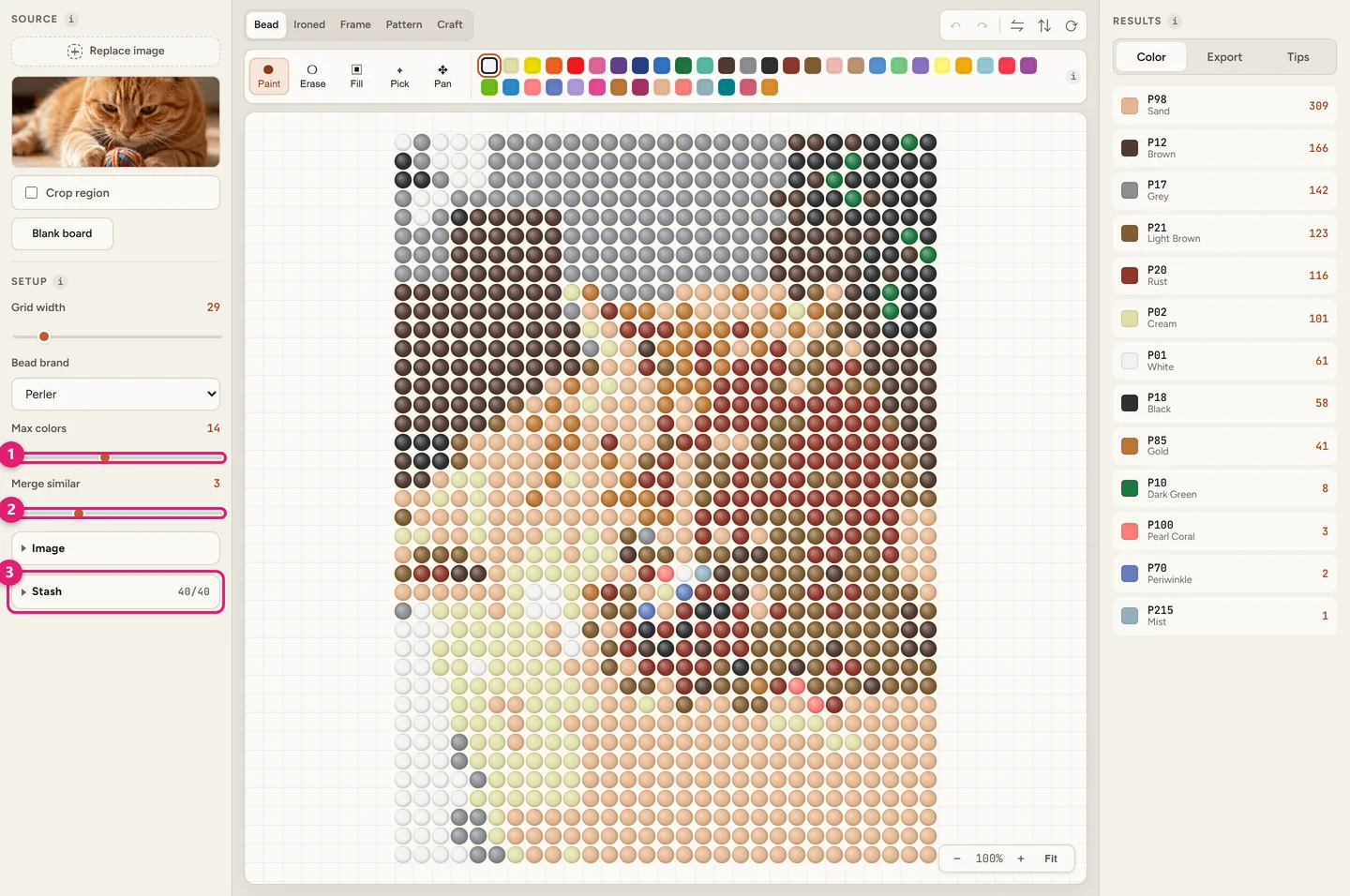
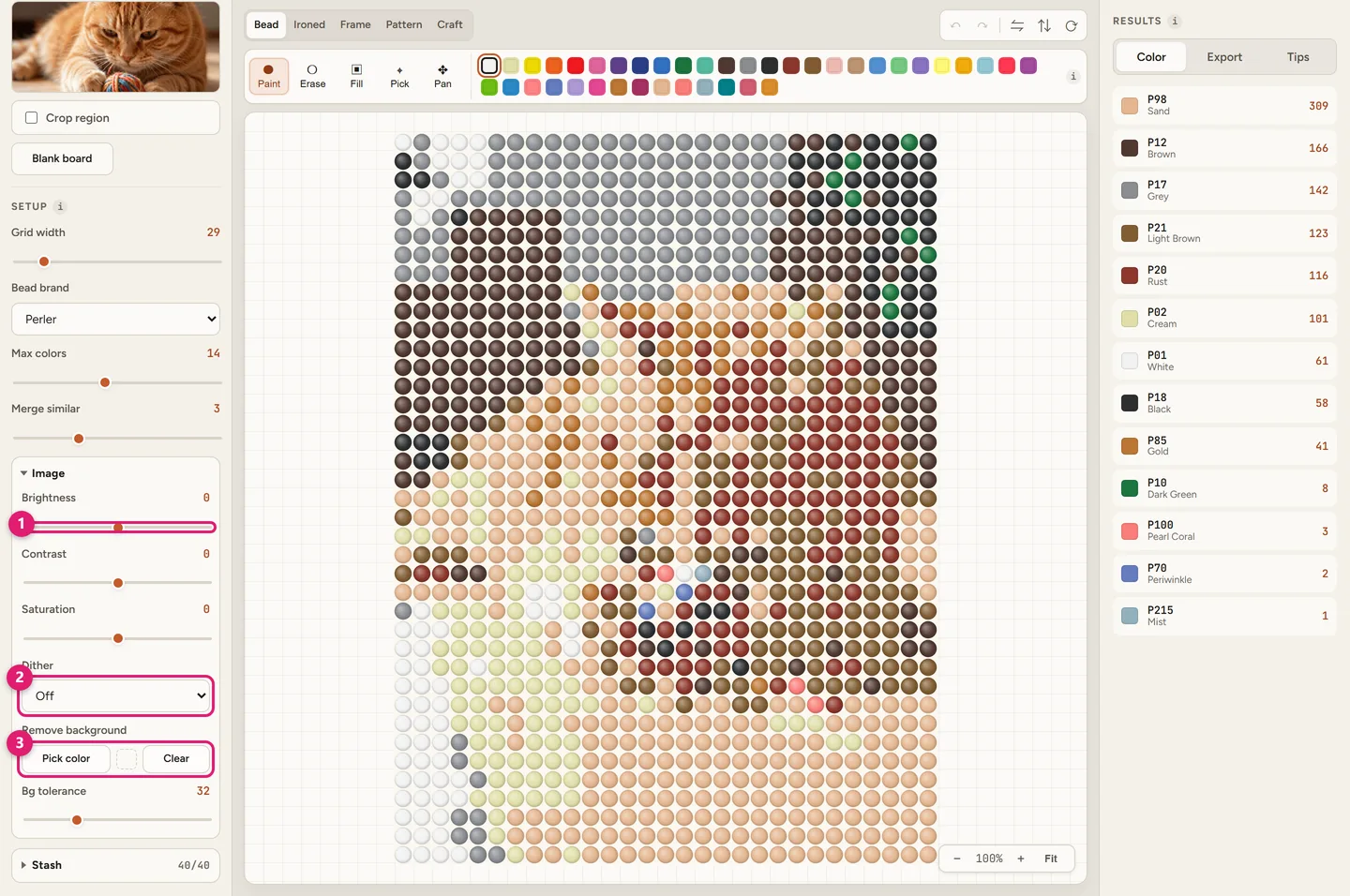
Open the Image section to fix the source before you touch any bead. Brightness, contrast and saturation rescue flat or dark photos. Dither → Floyd–Steinberg smooths gradients such as skies. Remove background plus Pick color and Bg tolerance drops a busy background so the subject reads clearly.
6Edit individual beads
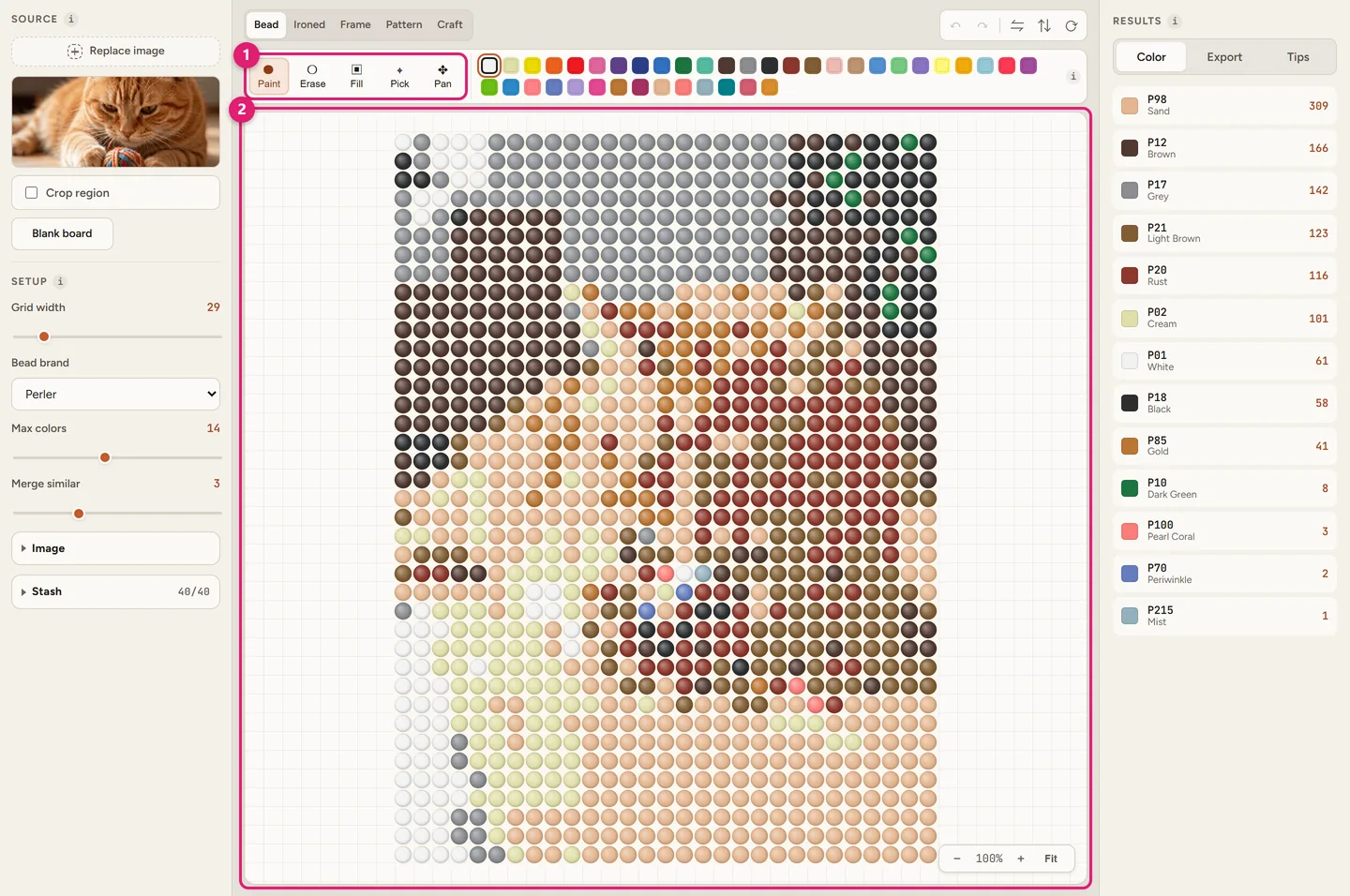
No converter gets every bead right. Pick a swatch, then use Paint, Erase, Fill (whole region) or Pick directly on the canvas. Scroll to zoom, hold Space and drag to pan, double-click to refit. Undo/redo, mirror and rotate sit in the top-right of the canvas.
7Preview the build
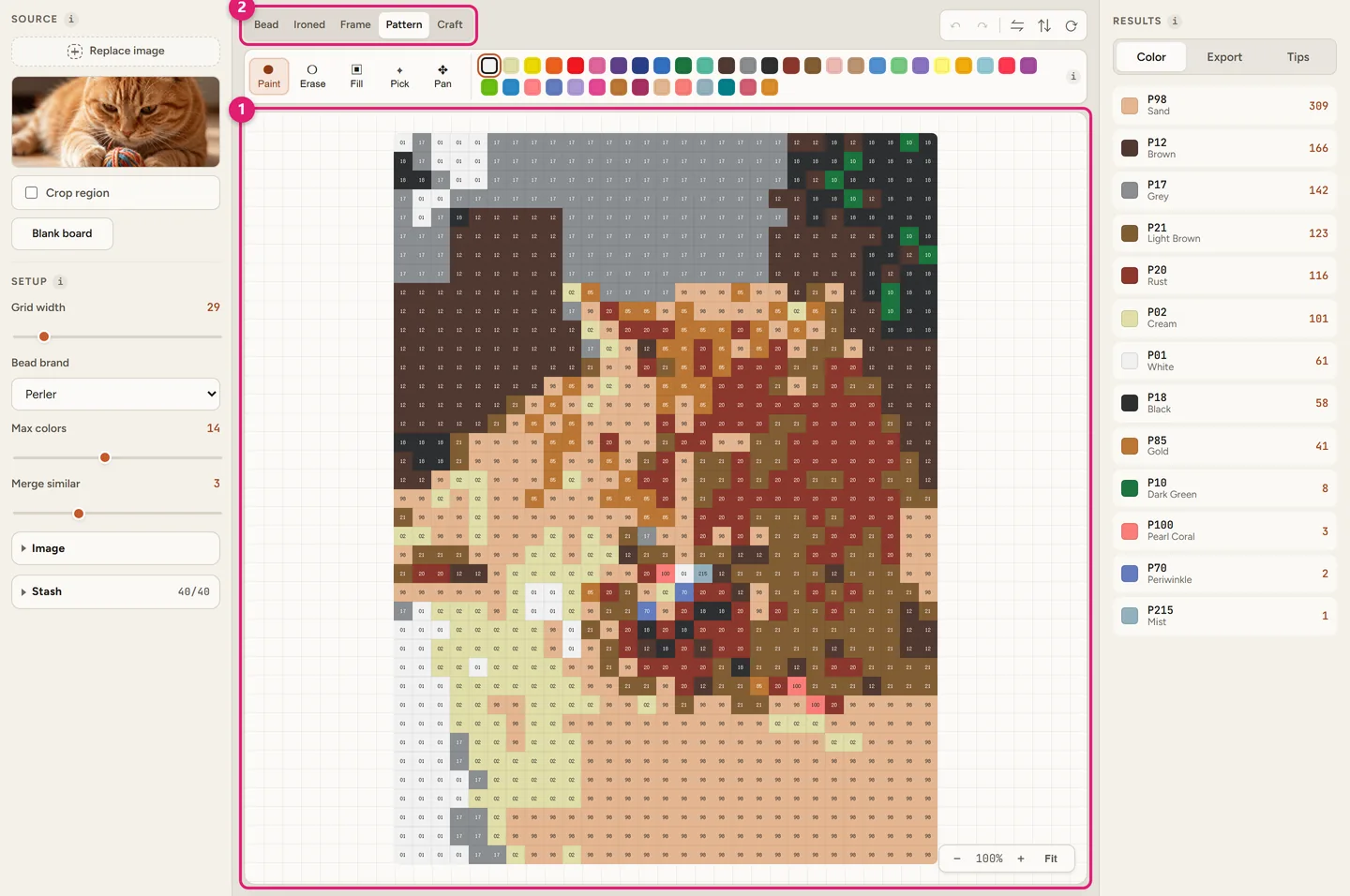
The view switcher above the canvas changes what you are looking at:
- Bead — the beaded grid as it sits on the board.
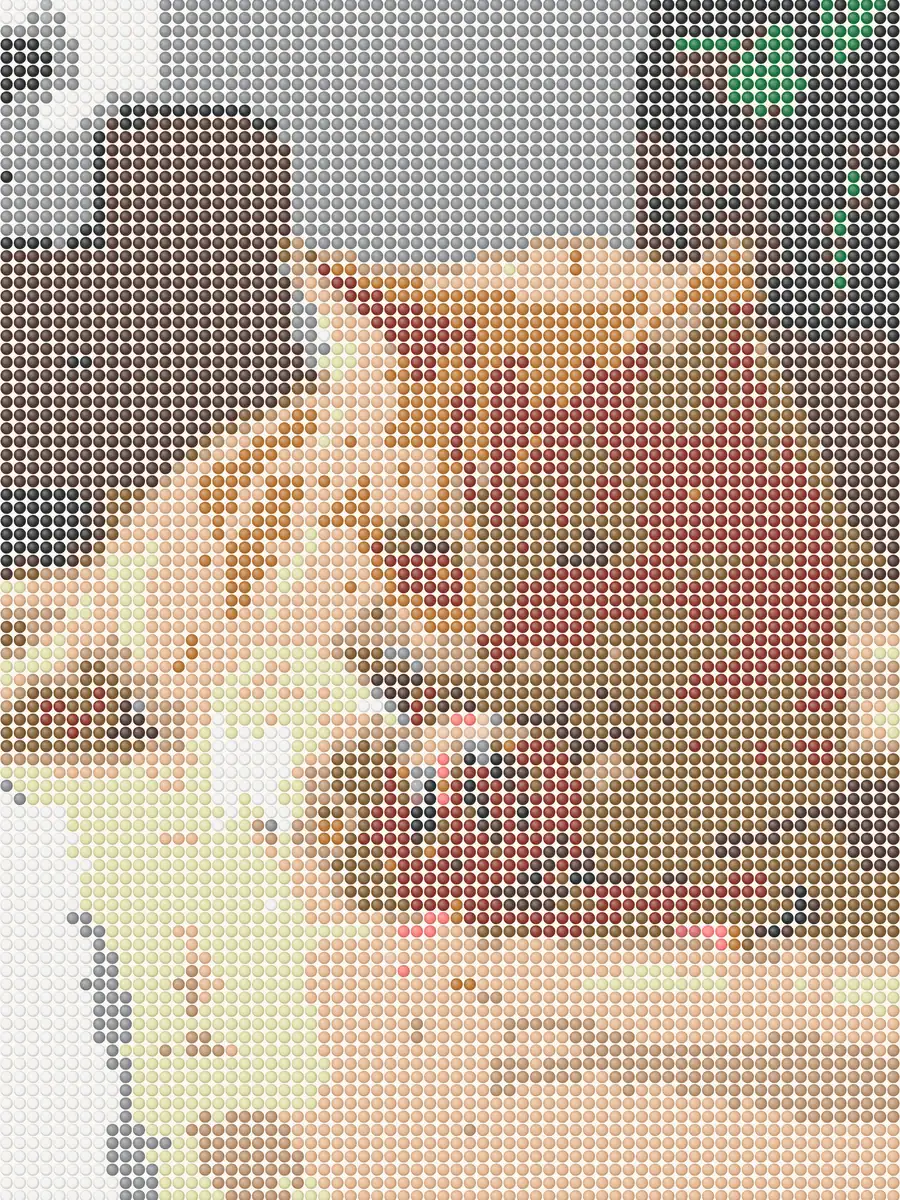
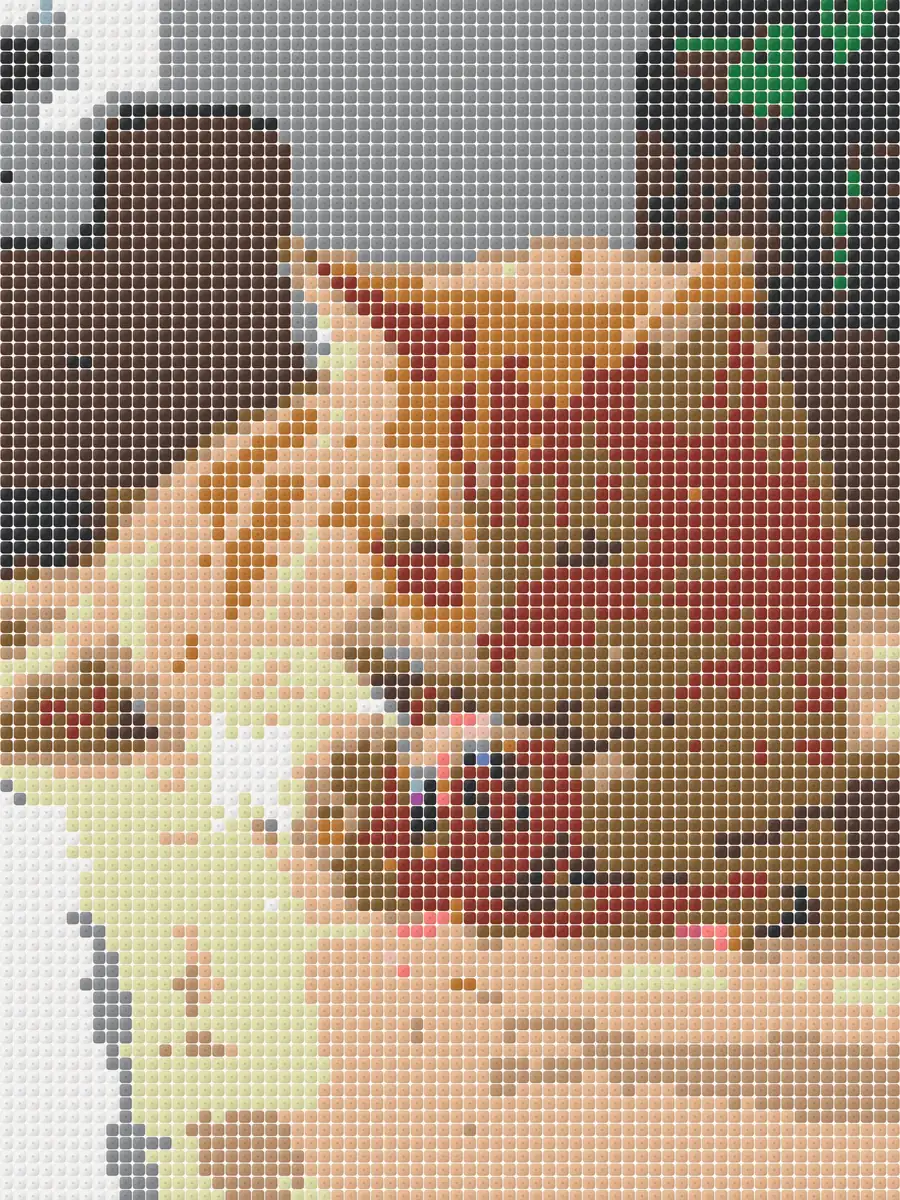
- Ironed — a preview of the fused result, useful for judging whether a face still reads.
- Frame — the finished piece in a picture frame moulding.
- Pattern — the printable chart: one cell per bead with its color code.
- Craft — tick beads off as you place them; progress is saved locally.
8Read the bead list, then export
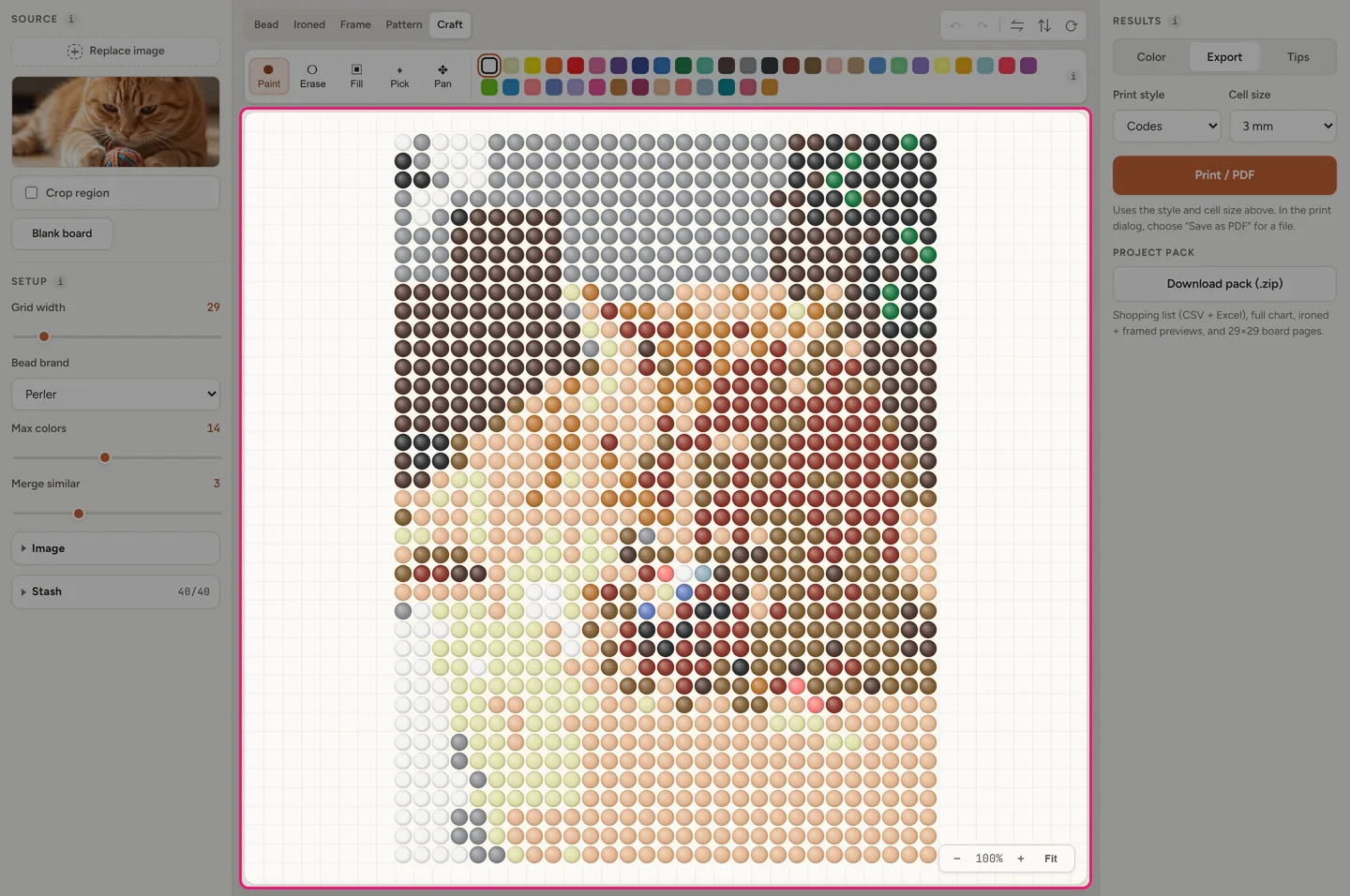
The Color tab lists every bead in the pattern with its brand code and count — that is your shopping list. Switch to Export to finish:
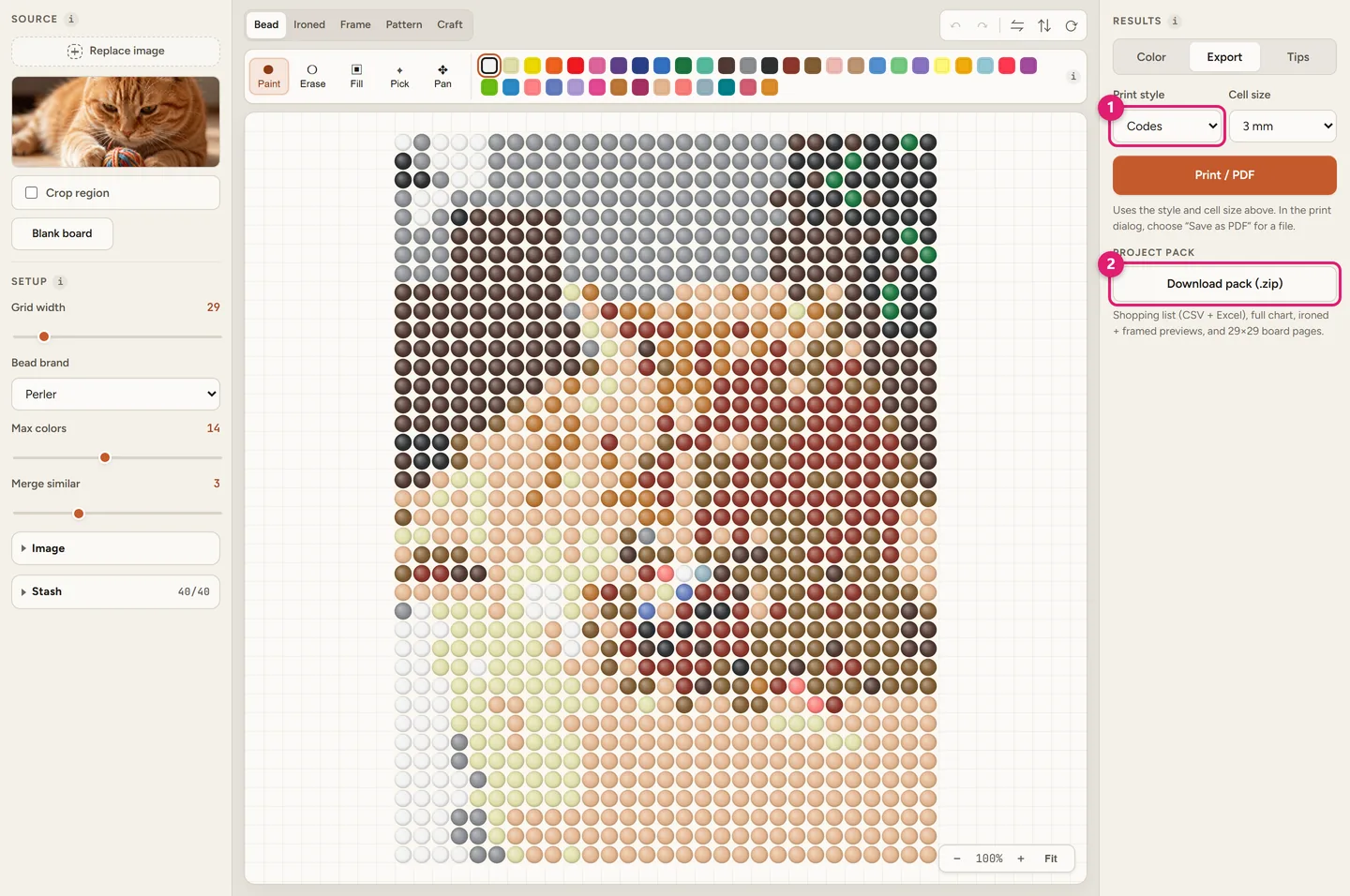
- Print / PDF — pick a print style (Codes, Numbers or Circles) and a cell size (2, 3 or 4 mm), then print or save as PDF.
- Download pack (.zip) — shopping list as CSV and Excel, the full chart, ironed and framed previews, and per-board 29×29 pages for large builds.
Print the chart, sort your beads by code, place them board by board, then cover with ironing paper and fuse. Beadful never uploads your photo — everything above happened in your browser.
How to pixelate an image for Perler beads
“Pixelating” is just deciding how coarse the grid is: every cell becomes one bead, so the grid width is the pixelation level. Three rules cover almost every picture:
- Match the grid to the pegboard, not to the photo. One square board is 29 beads — set width 29 and let the height follow the photo's aspect ratio.
- Let the subject fill the frame. Crop first, then raise width. A tight crop at 29 beads usually beats a loose crop at 60.
- Pixelate before you reduce colors. Set the grid, then lower Max colors — doing it in that order keeps edges crisp instead of smearing them.
Photos with soft gradients (skies, sunset backgrounds) need Dither → Floyd–Steinberg to avoid banding; flat illustrations and logos usually look better with dither off.
How to use your bead pattern once it is printed
A chart is only useful if you can follow it at the table:
- Sort beads by code. Pour one small pile per color code on the chart's legend — counting as you go is the slowest way to ruin a build.
- Work board by board. For multi-board pieces, use the per-board pages in the project pack instead of one huge sheet.
- Read row by row. Use the Numbers or Circles print style if the Codes style is hard to scan under a lamp.
- Iron last, and lightly. Cover with ironing paper and use short passes so the outer beads set before the center flattens.
Settings cheat sheet
The four settings that decide whether a build is fun or painful.
| Setting | Start here | Why |
|---|---|---|
| Grid width 29 | One 29×29 board | Keychains, sprites, small logos — the classic single-board size. |
| Grid width 58 / 87 | Two or three boards | Portraits and scenes that need more detail; expect a longer build. |
| Max colors 12–20 | Fewer bags | Cleaner, more graphic results and a much shorter shopping list. |
| Merge similar 2–4 | Fold near-duplicates | Removes shades you cannot tell apart once the beads are ironed. |
| Dither Floyd–Steinberg | Gradients and skies | Breaks up banding when a photo has smooth color transitions. |
| Cell size 3 mm | Printed charts | Readable at a glance; drop to 2 mm for very large grids. |
Keyboard shortcuts
- B paint · E erase · F fill
- R pick color · H pan
- Space hold and drag to pan
- Ctrl+Z undo · Ctrl+Y redo
- Ctrl++ / − zoom · Ctrl+0 fit
- Double-click the canvas to refit
Troubleshooting
The pattern looks muddy
Too many similar shades. Lower Max colors, raise Merge similar, and crop tighter so the subject fills the grid.
There are speckles of a wrong color everywhere
Usually a noisy or low-contrast photo. Raise contrast, then use Paint or Fill to clean up the worst areas by hand.
The background turned into beads
Use Remove background → Pick color, click the background in the preview, and raise Bg tolerance until it disappears.
The chart is too small to read when printed
In Export, raise Cell size to 4 mm, or split a large build across board pages with Download pack.
I do not own half these colors
Open Stash, tick only the bead colors you have, and regenerate — the pattern is rebuilt from your beads alone.
Pattern maker FAQ
Phrased the way people search on Google.
How do you use a Perler bead pattern maker?
Upload a picture, set the grid width to match your pegboard, choose the bead brand you will buy, trim the number of colors, then export a printable chart with a per-color bead count. Beadful Studio does all of this in the browser with no account.
How do I pixelate an image for Perler beads?
Set the grid width — that is the pixelation level, because every cell becomes one bead. Crop the subject first, then choose a width that matches your pegboard (29 for one square board, 58 for two, 87 for three), and only then lower the max colors so edges stay crisp. Use Floyd–Steinberg dithering for gradients.
Can I make a printable Perler bead pattern from an image?
Yes. Beadful Studio converts a JPG or PNG into a printable chart: choose a print style (Codes, Numbers or Circles) and a cell size (2, 3 or 4 mm), then print or save as PDF. The project pack (.zip) adds the shopping list as CSV and Excel, the full chart, previews and per-board pages.
Do I need to install software or an app to make a bead pattern?
No. Beadful Studio is a website that runs in your browser — nothing to install, no app to download. Open the Studio, upload a picture, and the pattern is generated on your device.
How do you use a Perler bead pattern once you have it?
Sort one small pile of beads per color code, place them on the pegboard following the chart row by row, cover with ironing paper, then iron in short passes until the beads fuse. For large pieces, use the per-board pages in the project pack.
How to make a Perler bead pattern from a picture step by step?
1) Open the Studio. 2) Upload a JPG or PNG and crop to the subject. 3) Set grid width (29 for one board) and pick Perler, Hama, Artkal or MARD. 4) Cap max colors. 5) Fix brightness and remove the background if needed. 6) Edit stray beads. 7) Switch to Pattern view. 8) Export the printable chart and shopping list.
What grid width should I use for a Perler bead pattern?
Use 29 for one standard 29×29 square pegboard, 58 for two boards, 87 for three. Small sprites look best around 24–32 beads wide; portraits usually need 48 or more.
How many colors should a Perler bead pattern use?
Start with 12–20. Fewer colors means fewer bags to buy and a cleaner result. Raise it only when the subject has gradients such as a sky.
Can I make a Hama or Artkal bead pattern with the same tool?
Yes. Change Bead brand to Hama, Artkal or MARD and regenerate — every cell is rematched to that brand's real colors and bag codes.
How do I get a bead shopping list from my pattern?
The Color tab shows each bead color with its code and count. Export adds a CSV and Excel shopping list, both included in the Download pack (.zip).
Is there a Perler bead pattern maker that does not upload my photo?
Beadful Studio processes images on your device, so the source photo never leaves your browser. No account is needed to open the Studio and build a pattern.
Why does my bead pattern look muddy or blobby?
Usually too many similar shades or a low-contrast photo. Lower Max colors, raise Merge similar, crop tighter, increase contrast, and remove the background.